What belongs on a multi-board dashboard
Start with the questions you ask every Monday:
- How much is open, and where? Cards per list on each board — the pipeline of every project.
- What is late? Overdue cards across all boards, as a counter and as a table.
- What's coming? Cards due this week.
- Who is doing what? Cards per member across boards.
- What got done? Cards completed this month, and per month over time.
Five or six widgets answering these are more useful than twenty charts nobody reads.

Build it with Cross-Board Reporting & Dashboards
Cross-Board Reporting & Dashboards is a Trello Power-Up that turns cards from one or many boards into dashboards. One widget can read several boards at once — that is what makes cross-board reports possible.
Open the Power-Up on a board
The first time you open it, a demo dashboard appears built from that board's cards, so you can see the widget types on your own data.
Enable it on the other boards
Enable the Power-Up on each project board. Your plan counts the boards your widgets read; the “Boards in widgets” page in the settings shows them.
Create a new dashboard
Give it a name, then pick its Grid template on the Dashboards panel; widgets can be resized and moved at any time.
Add widgets with the wizard
For each one: pick the boards, choose all cards or only those that meet a condition, pick what to count and how to split it, name it and add it to the dashboard. A live preview shows the result as you go.
Set auto-refresh
Every 5 minutes to every hour, or “Update when data changes” on the Pro and Pro+ plans and the trial, so the numbers follow the boards.
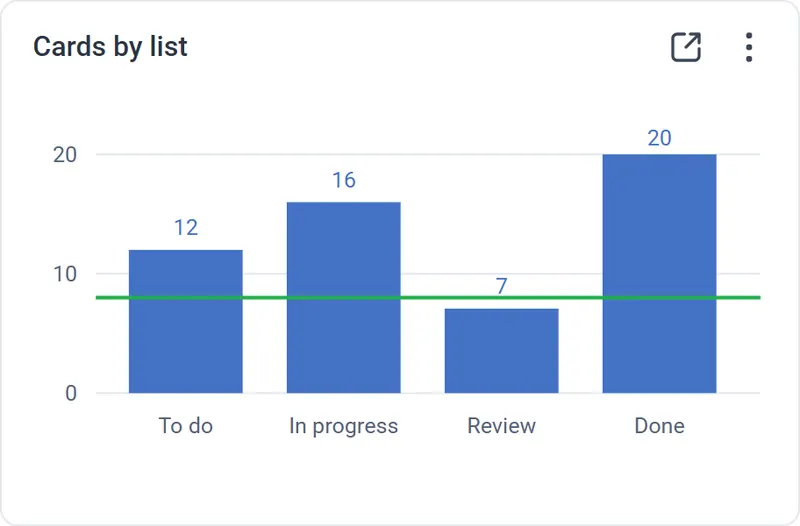
A starter layout
| Widget | Settings | |---|---| | Counter “Overdue” | All boards, condition Overdue | | Counter “Due this week” | Due date — This week | | Bar chart “Cards per board” | Split by Board name | | Pie chart “Cards by member” | Split by Members | | Line chart “Completed per month” | Completion date, grouped by month, trend line on | | Table “Due this week” | Board name, Card name, Members, Due date, Card link — each row links to the card |
Keep it useful
- One dashboard per question. Team overview, personal tasks, one per client, finances — each dashboard has its own button in the Dashboards panel.
- Use the same lists and labels across boards when you can; reports split by list read better when “Done” means the same everywhere.
- Share it with a manager who doesn't work in the boards daily — they view it, only you edit it. Sharing is part of the Pro and Pro+ plans and the trial.
Questions
Does the dashboard change my boards?
No. It only reads Trello data. Add the Card link column to a table and each row gets a link that opens its card, so you edit it in Trello.
Can it include boards from different Workspaces?
Yes. A single widget can read boards from several Workspaces.
Do I need Custom Fields?
No. Lists, labels, members, dates and checklists are enough for a useful dashboard.