




Board Assistant for Trello
Simple, straightforward automation in Trello—without complex rules or unnecessary hassle.
Key features of Board Assistant
Less manual work—more productivity!
A suite of tools for automating and managing Trello boards.
You set the rules—we take care of the rest!

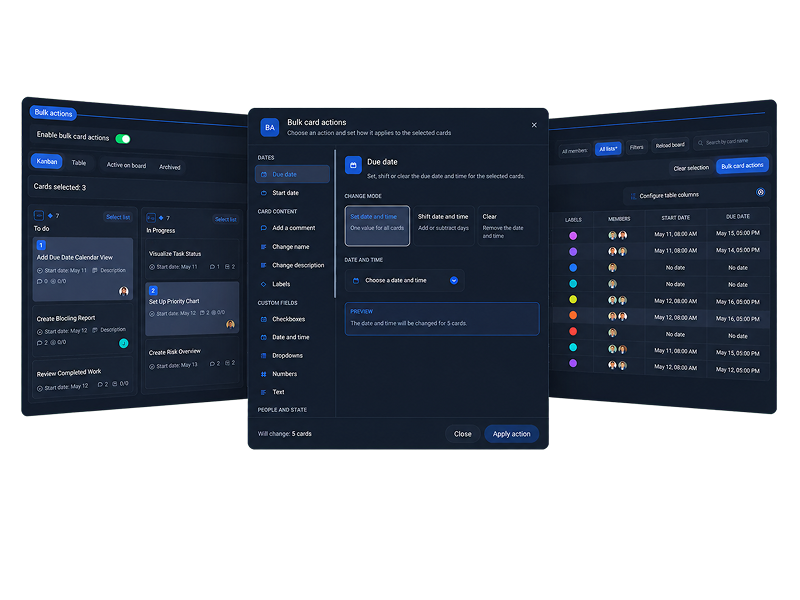
Bulk card actions: applies the selected action to multiple cards or lists at once.
This module lets you select multiple cards or entire lists and apply a single action to them. You can find the cards you need using search and filters, then select them in the Kanban view or table.
For cards, separate actions are available for changing dates, the title, description, Custom Fields, labels, members, completion status, watch settings, and checklists, as well as adding comments. Cards can also be moved, copied, archived, restored, or deleted.
For lists, you can rename, move, reorder, archive, restore, or delete them, as well as perform operations on the cards they contain. Before irreversible operations, Board Assistant asks for confirmation and displays the result when the operation is complete.

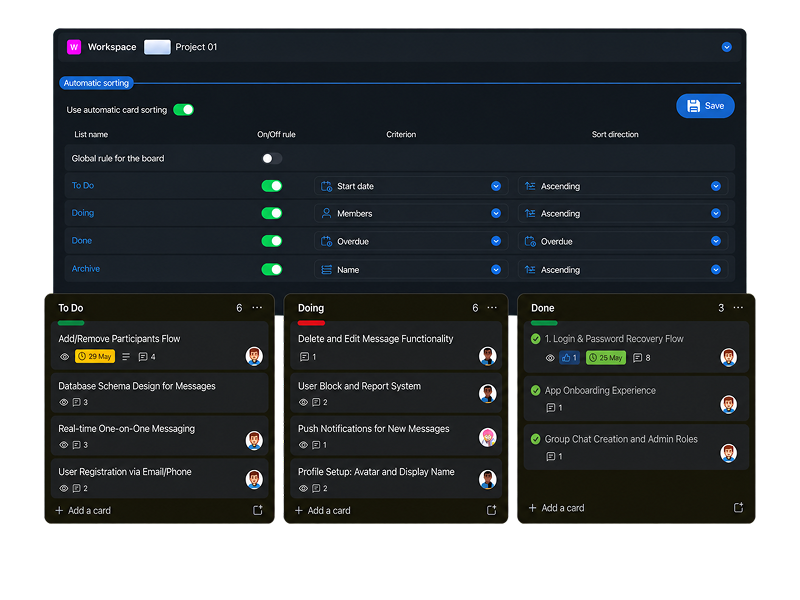
Automatic sorting: sorts cards across a board or within individual lists based on selected rules.
Board Assistant can automatically organize cards by a selected criterion.
For example, cards can be sorted by creation date, due date, a specified label order, or the value of a Custom Field.
You can create one rule for the entire board or configure separate rules for different lists.

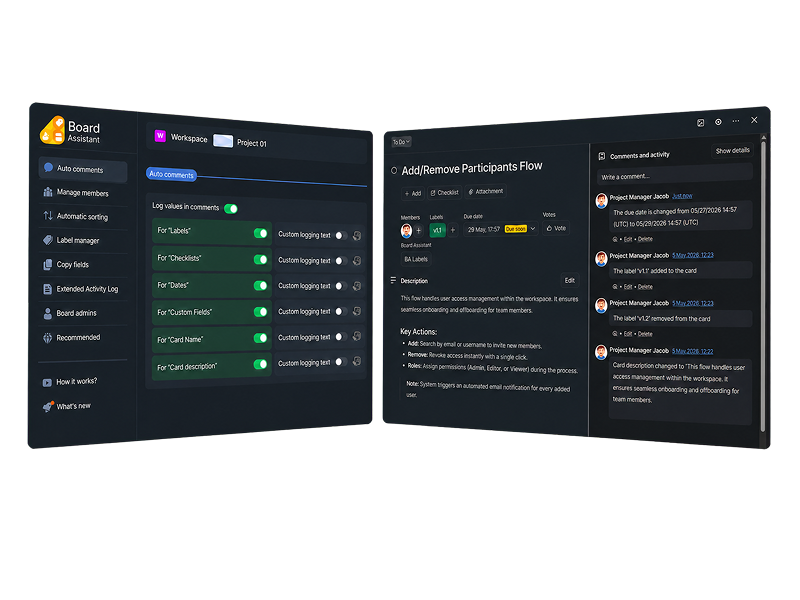
Auto comments: records changes to a card in comments.
Board Assistant automatically records changes to a card in comments. For example, it can record who changed the due date, title, description, label, or value of a Custom Field.
The comment is posted on behalf of the member who made the change. It shows the previous value and the value it was changed to. You can customize the text of these comments.

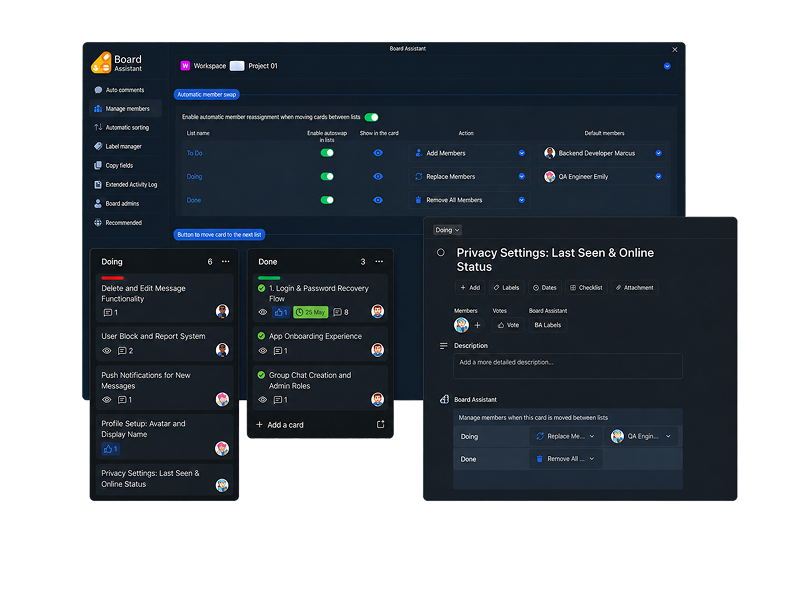
Manage members: adds or removes members when a card is moved between lists.
When a card is moved to another list, Board Assistant can automatically update its members.
For example, an assigned member can be added automatically in the “In progress” list, while all members can be removed from a card in the “Done” list.
You can configure rules for lists and set an exception for an individual card directly within that card.

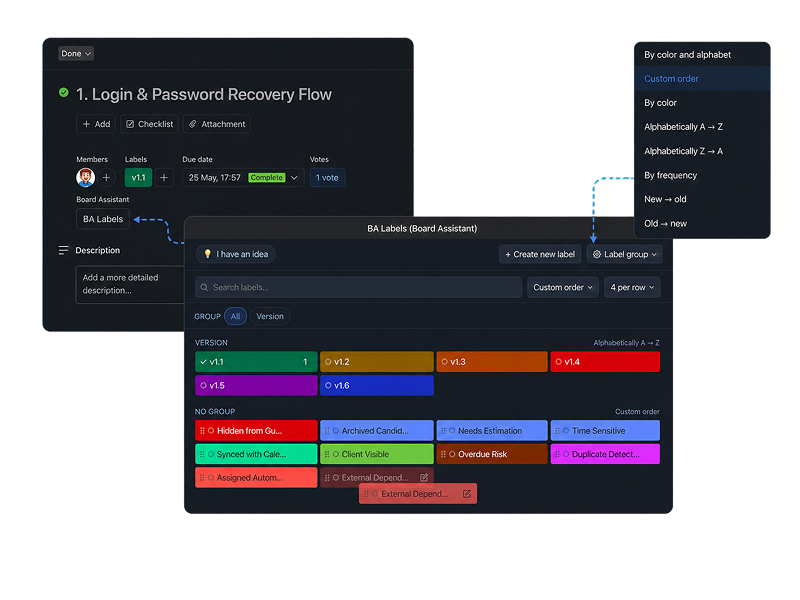
Label manager: opens a separate window from a card where you can add and remove labels, search, group, sort, and edit them.
Optimized for working with large numbers of labels. Board Assistant adds a “BA Labels” button to the Trello card. Selecting it opens a separate window containing the board’s labels. There, you can add labels to the card or remove them from it.
The same window lets you search labels, create a new label, edit existing labels, choose how many labels appear in each row, and sort them. Labels can be sorted by color, alphabetically, by frequency of use, by date added, or in a custom order.
Labels can be organized into groups. Each group can have its own sorting method. If custom sorting is set for a group, it takes priority over the general sorting method.

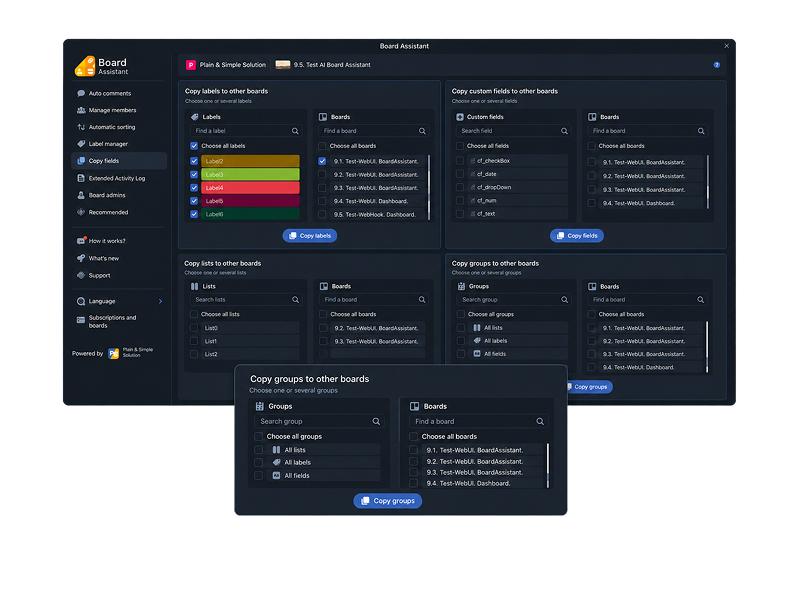
Copy fields: transfers lists, labels, and Custom Fields from one board to another.
This feature helps you set up a new board based on an existing one.
You can select lists, labels, or Custom Fields on one board and copy them to another. After copying them, you do not need to recreate the same fields and settings manually.

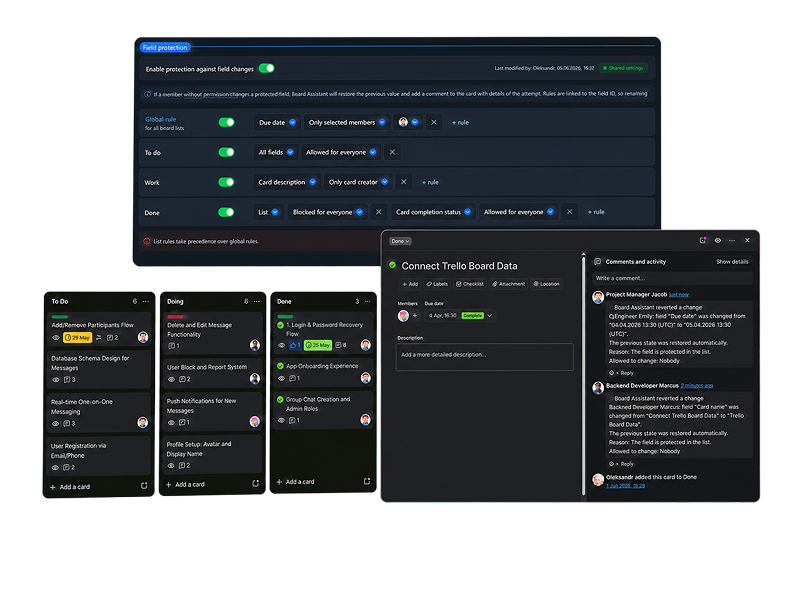
Field protection: control who can change important data in cards.
Configure rules for the entire board or individual lists, and define who is allowed to change fields or perform specific actions on cards.
If a user without permission makes a change, Board Assistant automatically restores the previous value and adds a comment to the card with details of the attempt.

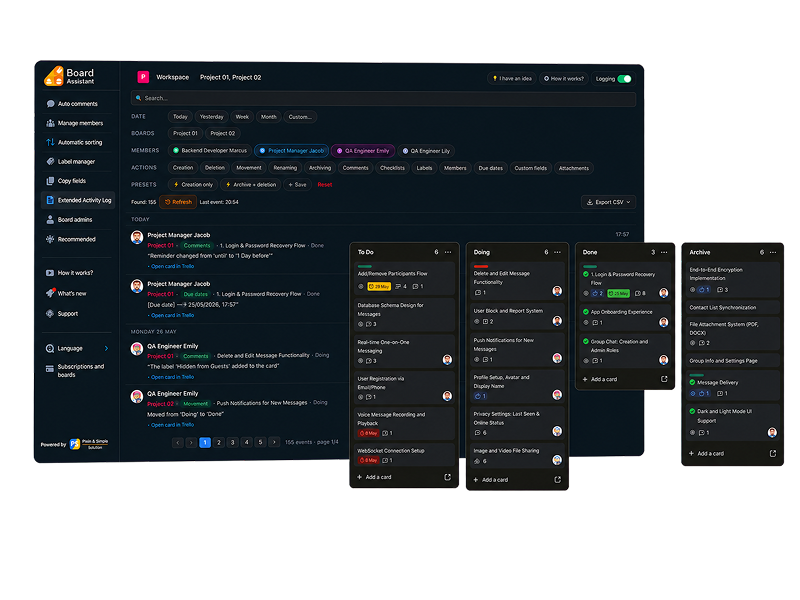
Extended Activity Log: shows a detailed history of who changed what and when.
It brings changes from your boards together in a single feed. There, you can see who changed what in cards and when.
You can filter the history by date, member, or action type, such as creating, moving, or deleting a card, adding a comment, changing a field, and more.
From the log, you can open the relevant card in Trello or download the change history to your computer in CSV format.

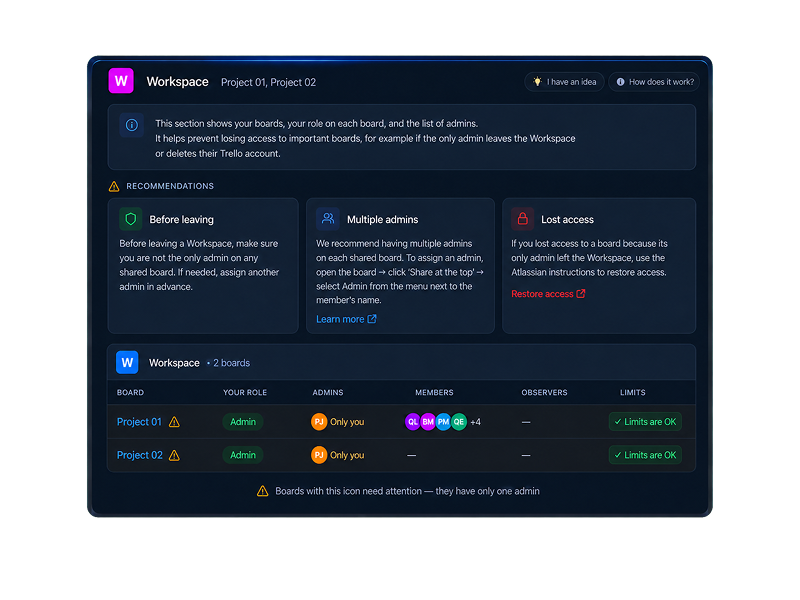
Board admins: shows roles and admins and warns you about boards with only one admin.
This section displays all your Trello boards in a single table. For each board, you can see your role, admins, members, and observers.
Board Assistant also checks whether a board has only one admin. If it does, it displays a warning.
This helps prevent situations where the team could lose access to a board—for example, if the only admin leaves the Workspace or deletes their account.