Decide what the spreadsheet is for
- A client report — completed cards this month with dates.
- A budget sheet — cards with Budget, Hours or Invoice amount as numbers.
- A status list — open cards with list, members and due date.
- An audit — everything, archived cards included.
The purpose decides the filter and the columns. A sheet with twelve useful columns beats one with forty.

Columns that are worth exporting
- Board name, Card name, Card link — so each row leads back to the card.
- Lists, Labels, Members.
- Due date, Start date, Completion date, Last activity.
- Marked as complete, Overdue.
- Checklist items done, Checklist items left, Checklist progress, %.
- Your Custom Fields — number, text, checkbox, date and dropdown fields.
Export with Cross-Board Reporting & Dashboards
In Cross-Board Reporting & Dashboards, a Trello Power-Up, every chart, counter and table widget lets you view the data behind it and export it to Excel. A table widget is the most direct way to shape that data.
Create a table widget
Pick the boards — one or several.
Filter the cards
For example, Completion date — This month, or Lists not equal “Done”. Archived cards can be switched on per widget.
Choose the columns and sorting
Add the fields from the list above, including Custom Fields.
Open the data and export
View the data behind the widget and use Export to Excel; Print is there too.
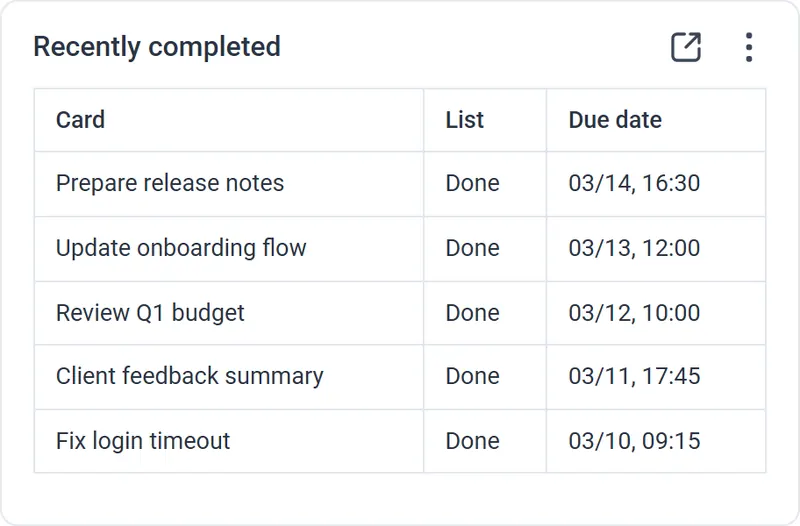
Because the table stays on the dashboard, next month you open it and export again — no need to rebuild the selection.
Tips
- Same field names across boards. Custom Fields with the same name and type on different boards become one column.
- Unnamed labels are shown by their colour, for example “Purple” — name them in Trello if the sheet goes to a client.
- Charts have data too. The data behind a chart widget can be viewed and exported in the same way.
Questions
Can I export several boards into one file?
Yes. A widget can read several boards, so its data — and the export — covers all of them.
Are archived cards included?
Not by default. Switch on archived cards in the widget's settings when you need them.
Is export available on every plan?
Yes, Export to Excel and Print are part of every plan.