Three ways to measure progress
- Cards done out of all cards. Simple and works on any board: how many cards are in “Done” or marked as complete.
- Checklist items done out of all items. Better when each card is a big piece of work with steps inside.
- Hours or points used out of planned. When you track numbers in Custom Fields.
Cards treat a two-hour task and a two-week task the same, so for uneven work checklist items or hours give a fairer picture.

Build it with Cross-Board Reporting & Dashboards
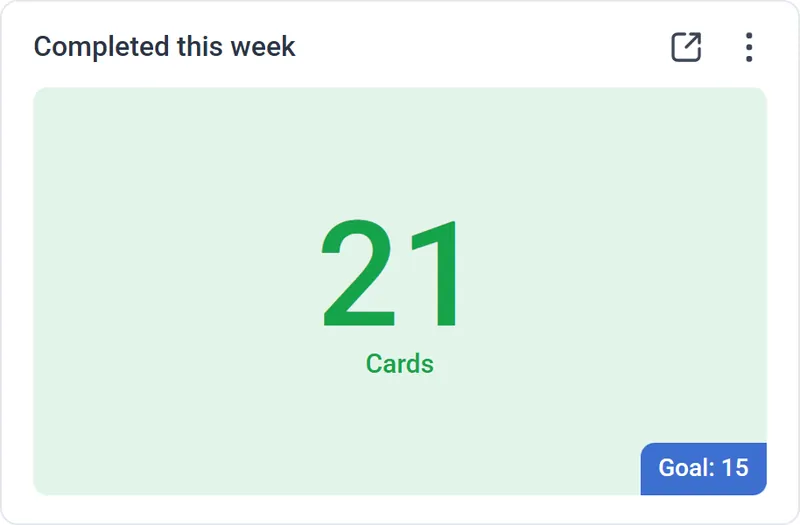
The percentage widget shows a share — “of these cards, how many…” or one number out of another — as a percent and as “X of Y”. An optional goal changes its colour when reached.
Cards done
Create a percentage widget on the project board: of all cards, how many are in Lists “Done”.
Checklist items done
Percentage as one number of another: Sum of Checklist items done out of Sum of Checklist items.
Hours used
Sum of Hours spent out of Sum of Hours planned (number Custom Fields).
Per sprint
Add a condition, for example Labels equals “Sprint 12”, or limit to the sprint's lists.
All projects side by side
Copy the widget for each project board, or use a bar chart split by Board name to compare.
Show the detail behind the number
- A table with Card name, Lists and Checklist progress, % shows which cards hold the project back.
- A bar chart of cards per list shows where the remaining work is.
Questions
What if cards are archived when done?
Archived cards are left out by default. Switch them on in the widget's settings so done work is counted.
Can I compare progress across all projects?
Yes. Enable the Power-Up on all project boards; one widget can read several boards and split the result by Board name.
Does the percentage update by itself?
Yes, on the dashboard's refresh schedule, or within seconds after a change when “Update when data changes” is on (Pro and Pro+ plans and the trial).