When one checklist belongs on many cards
- Definition of Done. Every card in the sprint should end with the same checks: reviewed, tested, documented.
- Onboarding. Each new-hire card gets the same first-week steps.
- Client or content work. Every article, campaign or order card follows the same production steps.
- A process changed. A new step was added, and the existing cards need the updated checklist too.

Prepare the template card
Create one card that holds the checklist exactly as you want it — name and items in order. Many teams keep such cards in a “Templates” list. Every card you add it to gets a copy of the checklist from that card, so fix typos on the template first.
Add the checklist with Bulk card actions
Add the Power-Up
Add Board Assistant to the board, open it with the Board Assistant button and connect the board to a plan (the free plan is enough to try it).
Open Bulk card actions
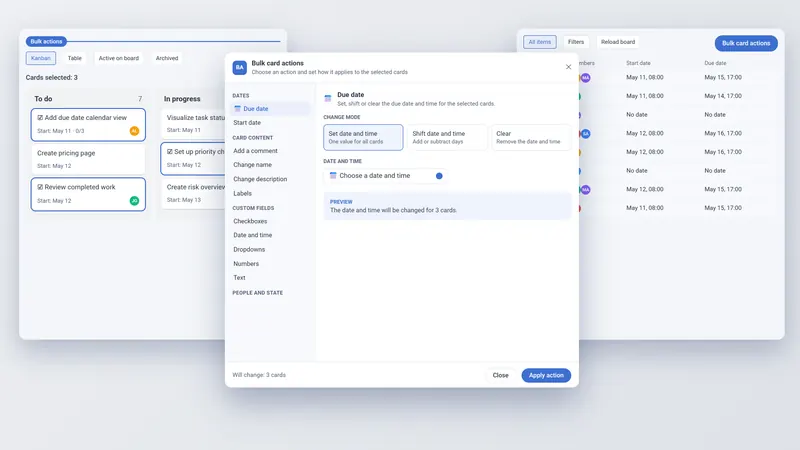
In the Board Assistant window, open Bulk card actions and pick the board.
Find the cards
Search by card name or use filters — list, labels, members, dates, checklists and more. For example: cards in “Sprint 14” without the label “Done”.
Select them
Pick the cards in the Kanban view or in the table.
Choose the checklist action
Add an existing checklist from another card and point it to your template card.
Check the preview
It describes the change and shows how many cards it will affect.
Apply
The result shows how many cards were changed, skipped (with the reason) or failed. The selection is kept, so you can follow with another action right away.
The same checklist on several boards
Bulk card actions work on one board at a time, and the template card must be on the same board: keep a template card on each board, pick the next board in the board picker and repeat the steps. Each board needs to have Board Assistant added and be connected to a plan.
More checklist jobs in bulk
The same section can also:
- rename or delete all checklists on the selected cards (the action applies to every checklist on each card);
- mark all checklist items complete or incomplete;
- shift the dates of checklist items, for example when the whole sprint moves by a week.
Questions
Can I add a checklist to all cards in a list at once?
Yes. Filter by that list, select the cards and add the checklist from your template card in one step.
Does Trello copy checklists to cards automatically?
Trello has its own options for card templates and automation; what your plan includes is described on Trello's help pages. Board Assistant adds a ready-made bulk action for cards that already exist.
Can I add a checklist to cards on all my boards?
Board by board: keep a template card on each board connected to your plan and run the same action there.