Why it is hard to answer
A due date gets moved during a busy week, and a few days later nobody remembers the original date or who agreed to the change. The earlier date is easy to lose in a long card. When a client or a manager asks why a deadline slipped, the team needs the old date, the new date and the person, in one place.

Log changes as comments with Board Assistant
Board Assistant is a Trello Power-Up. Its Auto comments section posts a comment on the card whenever something changes; for dates, Custom Fields and the card name the comment shows the old and the new value.
Open the section
Click the Board Assistant button on the board, open Auto comments and pick the board in the board picker.
Switch on dates
Turn on logging for dates: start date, due date, reminder and marking the due date complete.
Add other changes if you need them
Labels, checklists, Custom Fields (you can limit logging to selected fields), card name and card description are switched on separately.
Choose the wording
For each type of change pick “Default”, “Custom text” or “Do not log”. Custom text uses variables, for example `Deadline moved: {{oldDueDate}} → {{newDueDate}}`.
Set comment merging
Several changes made within a set number of seconds are merged into one comment, so editing five fields in a row does not flood the card.
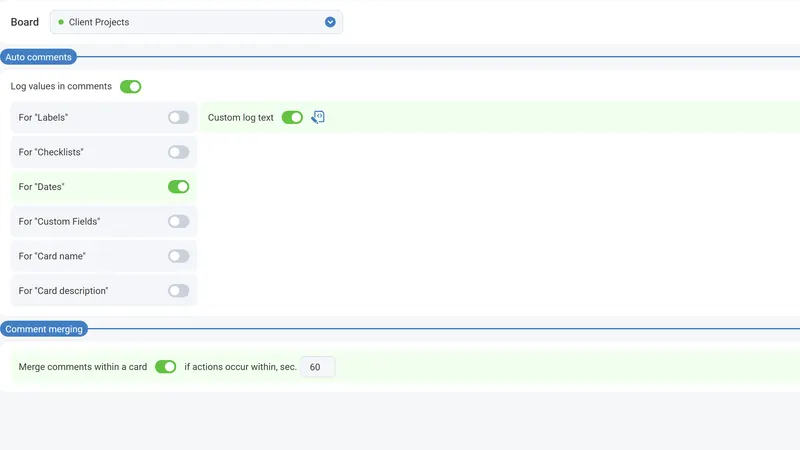
From now on, a change of due date shows up on the card as a comment with both dates.
Who the comment comes from
If the person who changed the card has authorised Board Assistant, the comment is posted from their own Trello account. If not, it is posted from the account of the member who last changed the Auto comments settings and starts with the name of the person who made the change, marked as not authorised in Board Assistant. Either way, the card shows who made the change.
Where it helps
- Client work. Every change of scope — description, a “Budget” Custom Field, checklist items — stays visible on the card.
- Agreed deadlines. The old and the new date are on record for the next status meeting.
- Checklists. Items added, renamed or checked off are recorded in the card's comments.
The point is transparency of the work: everyone on the card sees what changed, not a hidden log about people.
For a searchable history of a whole board rather than one card, see how to see the activity history of a Trello board.
Questions
Can I see who changed a due date in Trello?
Trello's card activity shows actions on the card. With Auto comments switched on for dates, each change is also posted as a comment with the old and the new date.
Does it show changes made before I switched it on?
No. Auto comments start commenting on changes made after you switch them on.
Can I log only some Custom Fields?
Yes. You can limit logging to selected fields.
Will it spam the card with comments?
Comment merging combines changes made within a set number of seconds into one comment, and any type of change can be set to “Do not log”.
Who can change these settings?
Auto comments are board settings: any board member who has authorised Board Assistant can open and change them, and they apply to everyone on the board.