If the admin has already left
- Ask the person, if you can still reach them. A former colleague who still has their Trello account can add a new admin to the board.
- Check who administers the Workspace. Workspace admins may have options that board members do not.
- Follow Atlassian's instructions. Atlassian publishes guidance on board and Workspace permissions and on regaining access. Use their current help pages rather than advice from forums, since options vary by plan.
We do not describe Atlassian's recovery process here: it is theirs, and it can change.
Why one admin is a risk
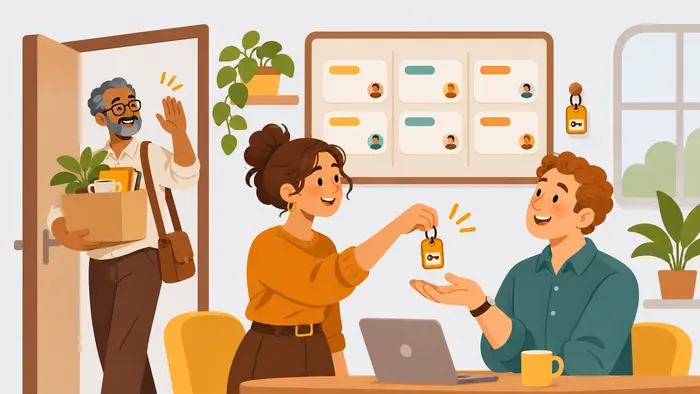
Admins look after a board's settings and its members. When that is one person, everything depends on their account. If they leave the Workspace or delete their Trello account, the rest of the team may be left with a board nobody can manage.
Find single-admin boards with Board Assistant
Board Assistant is a Power-Up with a section called Board admins. It shows a table of your boards with roles and warns about boards that have only one admin.
Add the Power-Up
Add Board Assistant to your boards, open it with the Board Assistant button and connect the boards to a plan (the free plan covers up to 2 boards).
Open Board admins
In the Board Assistant window, open Board admins. You see each connected board with your role, its admins, members and observers.
Look for the single-admin warning
Boards with only one admin are marked, so you can act before that person leaves.
Add a second admin in Trello
Board admins does not change roles itself. It includes recommendations and links to Atlassian's instructions for adding an admin and restoring access; follow them in Trello.
Check board limits while you are there
Indicators show when a board is getting close to Trello's limits for members, cards, lists, labels, Custom Fields and more.
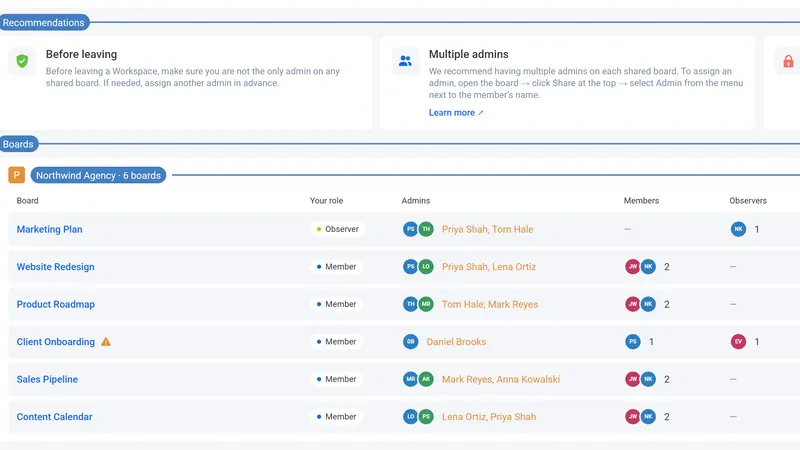
The data is read live from Trello each time you open the table; Board Assistant does not store it.
Make it part of offboarding
- Before someone leaves, open Board admins and check every board where they are the only admin.
- For key boards, agree on two admins as a team rule.
- Remember that the table covers boards connected to a plan, not every board in your Trello account.
Questions
How do I make someone an admin without the original admin?
That depends on your Workspace and plan. Check with your Workspace admins and follow Atlassian's help on board permissions and restoring access.
Can Board Assistant restore access to a board?
No. It does not change roles or recover access. It warns about single-admin boards and links to Atlassian's instructions.
How do I find Trello boards with only one admin?
Open Board admins in Board Assistant. Boards with a single admin carry a warning.
Does Board admins show all my boards?
It shows open boards connected to Board Assistant plans available to you, not every board in your account.