Why boards drift apart
A team starts with one well-organised board. Then a second project arrives, and someone rebuilds the lists from memory. A third board gets “Urgent” instead of “High priority”. A few months later, every board uses slightly different labels and Custom Fields, and filtering or sorting across them stops making sense.
The usual fixes take time:
- Copy the whole board. Useful for a brand-new project, but you get a new board, not an update to boards you already have, and you may need to clean out cards.
- Recreate by hand. Fine for three labels, tedious for thirty, and easy to get a name or colour wrong.
- Keep a template board. A good habit, but you still need a way to carry later changes to the boards that already exist.

What can be copied
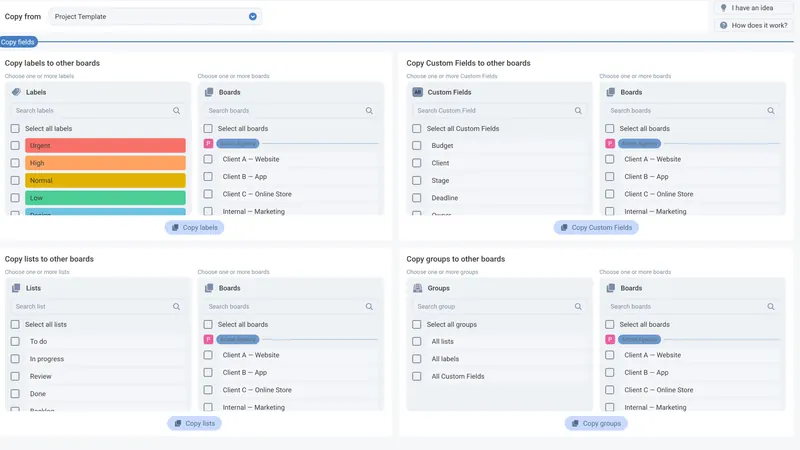
Copy fields in Board Assistant copies three kinds of structure:
- Labels — the label set of the source board.
- Lists — the list structure, such as “To do”, “In progress”, “Review”, “Done”.
- Custom Fields — for example a “Budget” number field or a “Stage” dropdown.
You can pick individual items or whole groups at once: “All labels”, “All lists”, “All Custom Fields”. It copies the structure, not cards. If you need to move or copy cards between boards, that is a separate tool, Bulk card actions.
Copy labels, lists and Custom Fields with Board Assistant
Add the Power-Up
Add Board Assistant to the board you work from and open it with the Board Assistant button on the board header. The boards you copy to do not need the Power-Up.
Have a plan
Choose a plan (the free plan is enough to try it); a plan of another member of your Trello Workspace also counts. Copy fields does not need the boards to be connected to the plan.
Open Copy fields
In the Board Assistant window, open the Copy fields section from the left-hand menu.
Choose the source board
This is the board whose structure you want to reuse — your template or your best-organised project.
Pick what to copy
Select single labels, lists or Custom Fields, or a whole group such as “All labels”.
Choose the target boards
Select one or more boards to receive the copy.
Run the copy
Open the target boards and check that the labels, lists and Custom Fields are there.
Ways teams use it
- A template project. Keep one board with the agreed lists, labels and Custom Fields, and copy them to each new project board.
- One new Custom Field everywhere. The team decides to track “Client” on every board — create it once and copy it to ten boards at once.
- A shared label set. Keep priority and team labels identical across a team's boards, so everyone reads them the same way.
Tips for a tidy structure
- Clean up the source board first: remove labels nobody uses before copying them to five other boards.
- Agree on names before you copy. Changing a name later on every board is the work you were trying to avoid.
- If a board has many labels after the copy, the Label manager in Board Assistant helps you search and group them on the card.
Questions
Does Copy fields copy cards too?
No. It copies lists, labels and Custom Fields only. To move or copy cards to another board, use Bulk card actions.
Can I copy to several boards at once?
Yes. Choose one source board and as many target boards as you need in the same run.
Is there a limit on the free plan?
The free plan includes a limited number of test copies in Copy fields. See the current plans in the Power-Up for details.
Do I need to add Board Assistant to every board?
No. Copy fields copies to any open board you can access; the Power-Up is needed only on the board where you open Board Assistant.