Why a sorted list falls out of order
- New cards land where they are added, not where their due date belongs.
- Dates change. A card moved from Friday to Monday stays in its old spot.
- Cards move between lists. A card dragged into “To do” keeps whatever position it was dropped in.
If your sort “is not working”, it is usually one of these: the order was applied once, and the board kept changing afterwards. Check what your Trello plan offers for sorting and automation in Trello's own help pages, since that depends on the plan.

Choose what “sorted” means for your board
Before setting anything up, decide what should be on top:
- Due date, ascending — the nearest deadline first. Good for “To do” and “This week”.
- Overdue — cards past their due date rise to the top, so they are seen first. Lists are re-sorted when something changes on the board, so a card that becomes overdue on its own moves up with the next change.
- Labels in your own order — for priority labels such as Urgent → High → Normal → Low.
- Members — groups cards by person within a list.
- A Custom Field — deal size, score or a stage dropdown in a sales or recruiting list.
Keep lists sorted with Board Assistant
Board Assistant is a Power-Up with a tool called Automatic sorting. It keeps cards in order as they are created, moved or changed.
Add the Power-Up
Add Board Assistant to your board, open it with the Board Assistant button and connect the board to a plan (the free plan is enough to try it).
Open Automatic sorting
In the Board Assistant window, open Automatic sorting and pick your board in the board picker at the top.
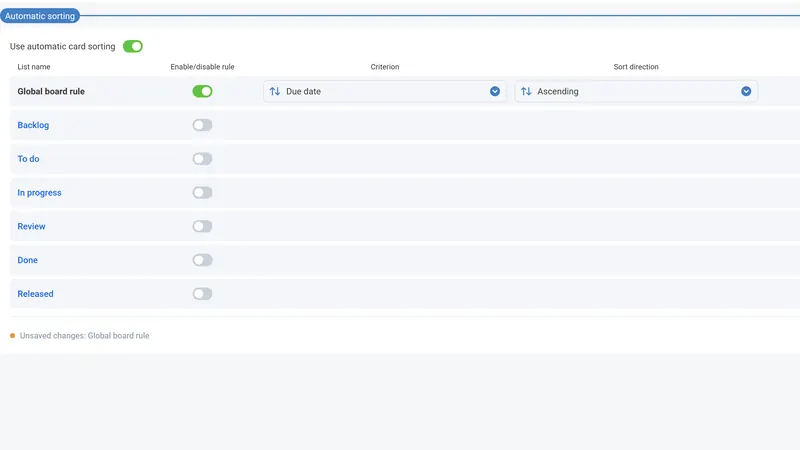
Switch sorting on and set a global board rule
Turn on “Use automatic card sorting” to show the rules, then choose the criterion (for example, due date) and the direction (ascending or descending). This rule applies to every list on the board.
Add list rules where a list needs something different
For example, sort “Backlog” by creation date and “To do” by due date. List rules take priority over the global board rule.
Set a custom order for labels or members
If you sort by labels, drag the labels into the order you want, such as Urgent, High, Normal, Low. The same works for members and for dropdown Custom Field options.
Save
Click Save: the lists are put in order, and from then on cards keep their place as the board changes.
In rare cases, a change made at the very moment of sorting is put in order with the next activity on the board.
Practical combinations
- “To do” by due date: due date, ascending, already puts overdue cards first and cards without a due date last. Choose Overdue instead if you only need late cards on top.
- Priority board: sort by labels in a custom order, so every list reads from Urgent down.
- Team board: sort “In progress” by members to see each person's cards together.
- Pipeline: sort by a number Custom Field such as deal size, descending.
Questions
How do I sort Trello cards by due date automatically?
Set a sorting rule by due date for the list or the whole board in Board Assistant's Automatic sorting. Cards keep that order as they are added, moved or changed.
Can I sort Trello cards by label in my own order?
Yes. Choose labels as the criterion and drag the labels into the order you want, for example Urgent → High → Normal → Low.
Why does my Trello list stop being sorted by due date?
A one-time sort does not follow later changes: new cards, changed dates and moved cards keep their own positions. A sorting rule that stays switched on puts them back in order.
Can different lists use different sorting?
Yes. Set one global board rule and add list rules where needed; list rules take priority.
Can I put overdue cards at the top?
Yes. Overdue is one of the sorting criteria.