What Trello offers on its own
Trello has some options for working with a whole list or several cards; what they cover depends on your plan, so check Trello's own help pages for the current options. For changes beyond moving — the same label on 40 cards, new due dates, a comment on every card in a filter — people usually turn to a Power-Up.

Typical bulk jobs
- Move many cards from one list to another list, or to another board.
- Archive many cards, for example everything finished last month.
- Shift due dates of all cards in a sprint by a number of days.
- Add a label or a member to every card that matches a condition.
- Add the same comment to many cards (“Moved to next release”).
- Add the same checklist, such as a “Definition of Done”, to many cards.
Bulk edit with Board Assistant
Board Assistant is a Trello Power-Up; its Bulk card actions section applies one action to many selected cards or lists.
Open the section
Click the Board Assistant button on the board, open Bulk card actions and pick the board in the board picker.
Find the cards
Search by card name or add filters: list, labels, members, dates, completion, overdue, checklists, Custom Fields and more. You can include active cards, archived cards, or both. Save a filter set you will need again.
Select them
Pick cards in the Kanban view or in the table.
Choose the action
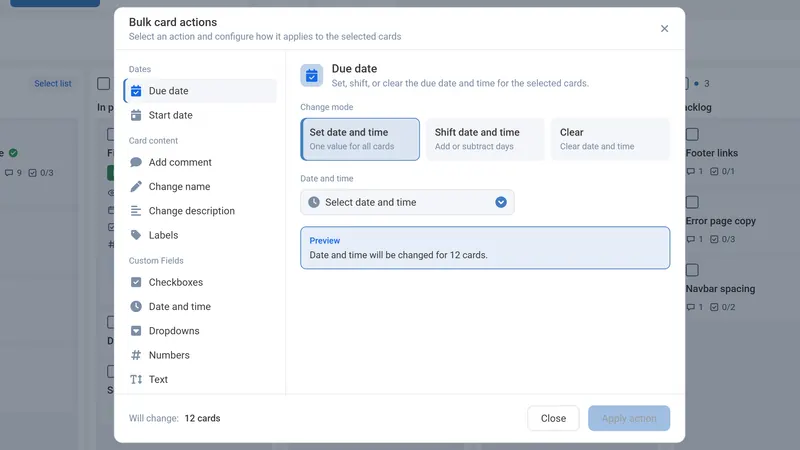
For example, shift the due date by 7 days, move the cards to a list on the same board or on another board connected to your plan, archive them, add or remove a label or a member, add a comment, or set a Custom Field value.
Check the preview
It describes the change and shows how many cards it will affect. Deleting cards, lists or checklists asks for confirmation first.
Apply and read the result
You see how many cards were changed, how many were skipped and why, and how many failed. The selection stays, so the next action can follow right away.
Working with whole lists
The same section has actions for lists: rename lists (add a prefix or suffix, or replace the name), move a list to another board connected to your plan or to the beginning or end of the board, archive all cards in the lists, move or copy their cards to another list, archive or restore lists, and delete lists that have no active cards (archived cards still in them are deleted with them; the preview and the confirmation show how many). A quarterly clean-up becomes: select the old lists and archive their cards; delete those lists only when you no longer need the archived cards in them.
Tips for safe bulk changes
- Narrow the filter first and look at the card count in the preview before applying.
- Prefer archiving to deleting; archived cards can be restored from the same section into a list you choose.
- Changes are made with your own Trello permissions, so you can only change what you could change by hand.
Questions
Can I move multiple cards to another board in Trello?
Yes. In Bulk card actions, select the cards and choose to move or copy them to a list on another board connected to your Board Assistant plan.
How do I archive multiple cards in Trello at once?
Filter the cards (for example, list “Done” and a due date in the past month), select them and choose archive. They can be restored later in the same section, into a list you choose.
Can I shift the due dates of many cards by a week?
Yes. Choose the due date action and shift it by the number of days you need; start dates and checklist item dates can be shifted too.
Can I delete many cards at once?
Yes, deleting is one of the actions. It cannot be undone, so Board Assistant asks for confirmation first; archiving is the safer choice in most cases.
Who can use it on a board?
Board members who have authorised Board Assistant, on boards connected to a Board Assistant plan in their Trello Workspace — always with their own Trello permissions.