When this matters
- A due date agreed with a client gets moved by someone outside the account team.
- A “Budget” Custom Field is edited by a person who should only read it.
- A card in “Approved” is renamed or dragged back to “In progress” by mistake.
- A checklist item is ticked off by someone who isn't doing that work.
None of these are bad intentions — usually it's a misclick or a misunderstanding. What helps is a clear rule and a quick, visible correction.

How Field protection works
Field protection does not stop anyone from typing in Trello. Trello's own editing works as usual. Instead, when someone without permission changes a protected field, Board Assistant puts the previous value back and adds a comment to the card: who tried to change what, and why it was reverted. The restore and the comment are made from the Trello account of the member who last switched protection on for the board. The person sees the explanation right on the card.
Fields you can protect include card name, description, start date, due date, reminder, labels, card members, checklists, the list (moving the card), archive, card completion status and Custom Fields — or “All fields”.
For each field you choose who may change it: only the card creator, only card members, only checklist item assignees (for checklists), only selected members, everyone except selected members, blocked for everyone, or allowed for everyone.
Set it up in Board Assistant
Add the Power-Up
Add Board Assistant to the board, open it with the Board Assistant button and connect the board to a plan.
Open Field protection
Choose the Field protection section in the left-hand menu and pick the board in the board picker.
Set a global board rule
Choose the fields to protect on all lists and who may change them — for example, due date: only the card creator.
Add list rules where needed
For a list such as “Approved”, protect the card name and the list, so cards there are not renamed or moved by mistake. List rules take priority over the global board rule.
Test it
Ask a colleague without permission to change a protected field, and check that the value comes back with a comment.
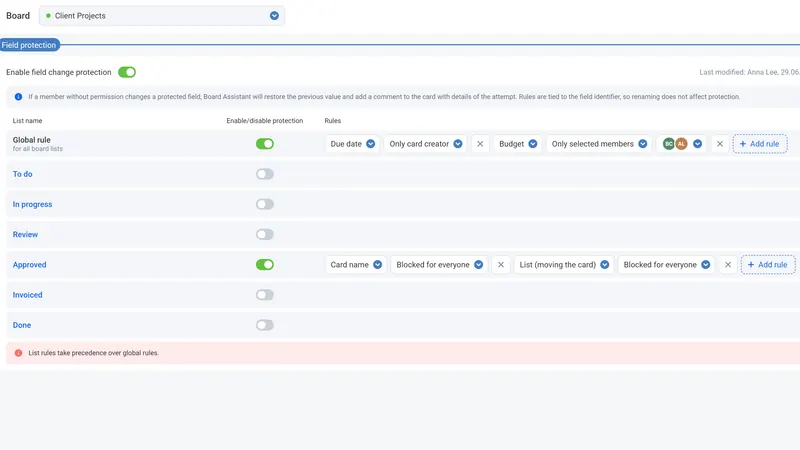
Example rules
- Client deadlines. Due date — only the card creator.
- Finance data. Custom Field “Budget” — only selected members from the finance team.
- Finished work. In “Approved”: card name and list — blocked for everyone.
- Checklist ownership. Checklists — only checklist item assignees, so items are ticked by the person they are assigned to.
Things to know
- Deleting a checklist or a checklist item is not reverted. Keep that in mind for checklists that matter.
- Rules are tied to the field itself, not its name, so renaming a Custom Field doesn't break protection.
- Settings are shared by the whole board, and the screen shows who last changed them and when.
Questions
Can I make a Trello card read-only for some members?
Board Assistant doesn't block editing. It restores the previous value of a protected field after an unauthorised change and comments on the card who tried to change it.
Can only the card creator change the due date?
Yes, as a rule: protect the due date with “only the card creator”, and changes by others are reverted.
Does it work for Custom Fields?
Yes. Custom Fields can be protected individually, for example a single “Budget” field.
Are deleted checklist items restored?
No. Deleting a checklist or an item is not reverted.