Why label lists get long
Labels are easy to add, so they pile up: priorities, teams, versions, clients, statuses. Each one makes sense on its own. Together they become a long list where “High priority” sits between “Client: Acme” and “v2.3”, and people pick the wrong one or stop using labels at all.

First, tidy what you have
- Merge duplicates. “Urgent” and “High priority” often mean the same thing.
- Remove labels nobody uses. Old versions and finished clients are common leftovers.
- Use a naming pattern. Prefixes like “Team: Design” or “Prio: High” keep related labels together when sorted alphabetically.
This helps, but a large board still has many labels for good reasons. That's where sorting, groups and search come in.
Use the Label manager in Board Assistant
Add the Power-Up
Add Board Assistant to the board, open it with the Board Assistant button and connect the board to a plan.
Turn on the Label manager
In the Board Assistant window, open the Label manager section, pick the board and switch on the “BA Labels” button. The setting is personal: each member who wants the button turns it on for themselves.
Open a card
A “BA Labels” button appears on the card, next to Trello's own buttons. Click it to open the label window.
Search
Type part of a label name to find it instead of scrolling, then add it to the card or remove it.
Choose a sorting
Colour and alphabet, colour, A→Z, Z→A, newest first, oldest first, or your own custom order by drag and drop.
Create groups
Combine labels into named groups such as Priority, Teams or Versions. Each group can have its own sorting, which takes priority over the global one.
Adjust the layout
Choose how many labels are shown per row.
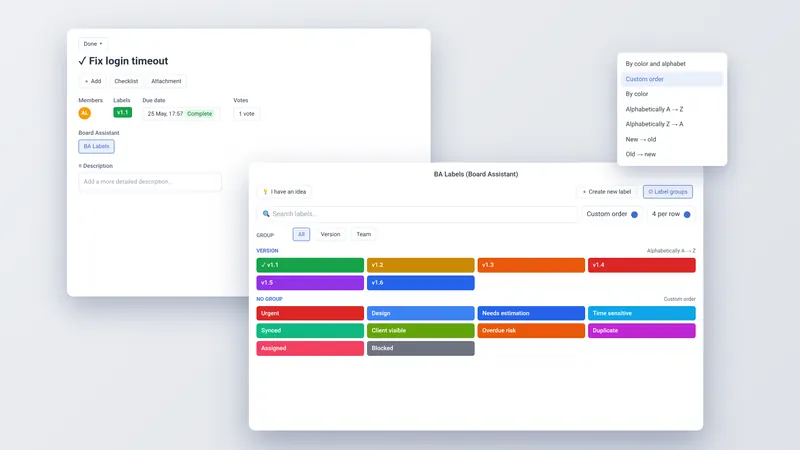
From the same window you can also create a new label, or edit a label's name and colour, or delete it.
Your order, not everyone's
Label order and groups are personal. Each member sees labels in their own order and doesn't change anyone else's. A designer can keep “Team” labels on top, while a release manager keeps “Versions” first — on the same board.
Example setups
- Alphabetical with prefixes. Sort A→Z, so “Prio: …” and “Team: …” labels stay together.
- Priority in a fixed order. A “Priority” group with custom order: Urgent, High, Normal, Low.
- Versions in your own order. A “Versions” group in custom order, with the current release first.
Questions
Can I group labels?
Yes. Create named groups and give each group its own sorting.
Will my label order change what my teammates see?
No. Label order and groups are personal to each member.
Can I search labels on a card?
Yes. The “BA Labels” window lets you search the board's labels.