Why checklist dates slip
Checklists are where teams put the real work: onboarding steps, QA items, content tasks, client deliverables. Each item can have its own due date and its own person. The trouble starts when the same kind of work runs on several boards:
- A card “Website launch” is on track, but two of its checklist items were due yesterday.
- A designer has items on five client boards and no single place where they all line up.
- A team lead wants to know what is overdue today and has to open every board, every card, every checklist.
The fix is to bring every card with a late or upcoming checklist item, from every board, into one table.

What a useful checklist overview shows
- Cards with overdue items — at least one item past its due date and not complete.
- Cards with items coming up — what needs attention next.
- Cards with items for one person — so each person sees where their part is.
- Checklist progress per card — items done, items left and the percentage.
- The board and the card, with a link to open it.
Build it with Cross-Board Reporting & Dashboards
Cross-Board Reporting & Dashboards is a Trello Power-Up that collects cards from many boards into one dashboard. Each row of a widget is a card. The checklist item fields — Checklist name, Checklist item, Item complete, Item due date, Item overdue and Item member — work as conditions: the widget keeps the cards where at least one checklist item meets them, and all the conditions are checked on the same item.
Enable the Power-Up
on each board you want in the report. Your plan counts the boards your widgets read, so there is no separate list to maintain.
Create a table widget
Pick all the boards with checklists in the first step of the widget wizard.
Keep only cards with overdue items
Choose “Only cards that meet a condition” and set Item overdue to yes.
Choose the columns
Board name, Card name, Due date, Members, Card link, Checklist items left and Checklist progress, % are usually enough.
Add a counter next to it
The same condition in a counter shows how many cards have overdue checklist items. With a goal of 1 and red as the goal colour, the number turns red as soon as one appears.
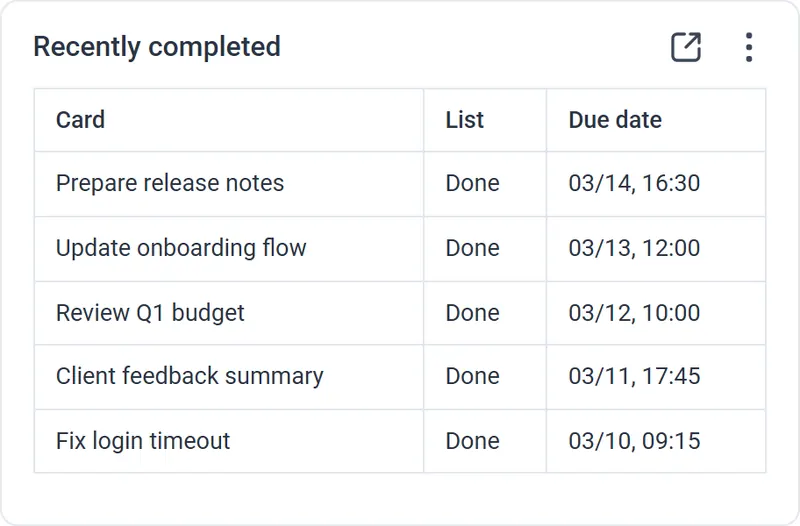
Add the Card link column and each row gets a link that opens its card, so you tick the item off in Trello.
Variations
- Cards with my items. Copy the table and add the condition Item member equals your name: the cards, on any board, where one of your checklist items is overdue. Without Item overdue it lists every card with items assigned to you.
- Items coming up. Swap Item overdue for a date condition on Item due date to see the cards whose checklist items are due soon.
- Progress per card. A table with Card name, Checklist items done, Checklist items left and Checklist progress, % shows how far each card's checklist has come.
Questions
Can I list the checklist items themselves as rows?
No. A row is always a card: checklist item fields choose which cards appear, and the card's columns show how many items are done and left. To see the items, open the card from the Card link column.
Does it change my checklists?
No. The Power-Up only reads Trello data. To tick an item off, open the card from the table and do it in Trello.
Can it include archived cards?
Archived cards are left out by default; you can include them per widget.
Does “today” depend on time zone?
Each widget has its own time zone, detected automatically or chosen by you, so periods such as Today and This week follow your team's calendar. Overdue compares the due date with the current moment, so it is the same in every country.