Why a single reminder gets swiped away
A normal reminder fires once. If it arrives while you're carrying shopping bags, cooking or in the middle of a conversation, you glance at it, swipe it away and mean to come back to it. Then the moment passes, and the task sits there until someone asks about it.
A repeating reminder works differently: swiping it away doesn't end it. It comes back a little later, and again after that, until the task is actually done. You stay in charge of the pace — you choose how often it comes back — but you no longer have to remember to remember.

When a repeating reminder is worth it
Not every errand needs one. A reminder that keeps coming back is useful when:
- The job is short but easy to postpone. Sending a meter reading, booking the car in for its service, replying to a form from school.
- It has to happen today. Dropping off a parcel before the collection point closes, or putting the washing in the dryer before you go out.
- You'll be busy when the first reminder arrives. The second or third one often lands at a better moment.
For jobs without any date, a reminder isn't always the right tool: an errand with no date at all is simply shown every day until it's completed (more on that in our family to-do list guide).
How to set a reminder that repeats until done in Family Errands
In Family Errands, you turn this on in the reminder itself, in its Repeat column. The reminder repeats every 5, 10, 15, 30, 45 or 60 minutes, or at a custom step, until the errand is marked done.
Create the errand
Give it a short title, such as “Book the car service”, and set the date and time when you want to start being reminded.
Add a reminder
Choose when the first one should come: at the time, or a set number of minutes or hours before.
Make it repeat until done
In the reminder's Repeat column, pick how often it comes back: every 5, 10, 15, 30, 45 or 60 minutes, or a custom time.
Do the job, then complete the errand
You can mark it complete from its card, from the errand screen, from the widget or straight from the notification. Once the errand is done, the reminder stops.
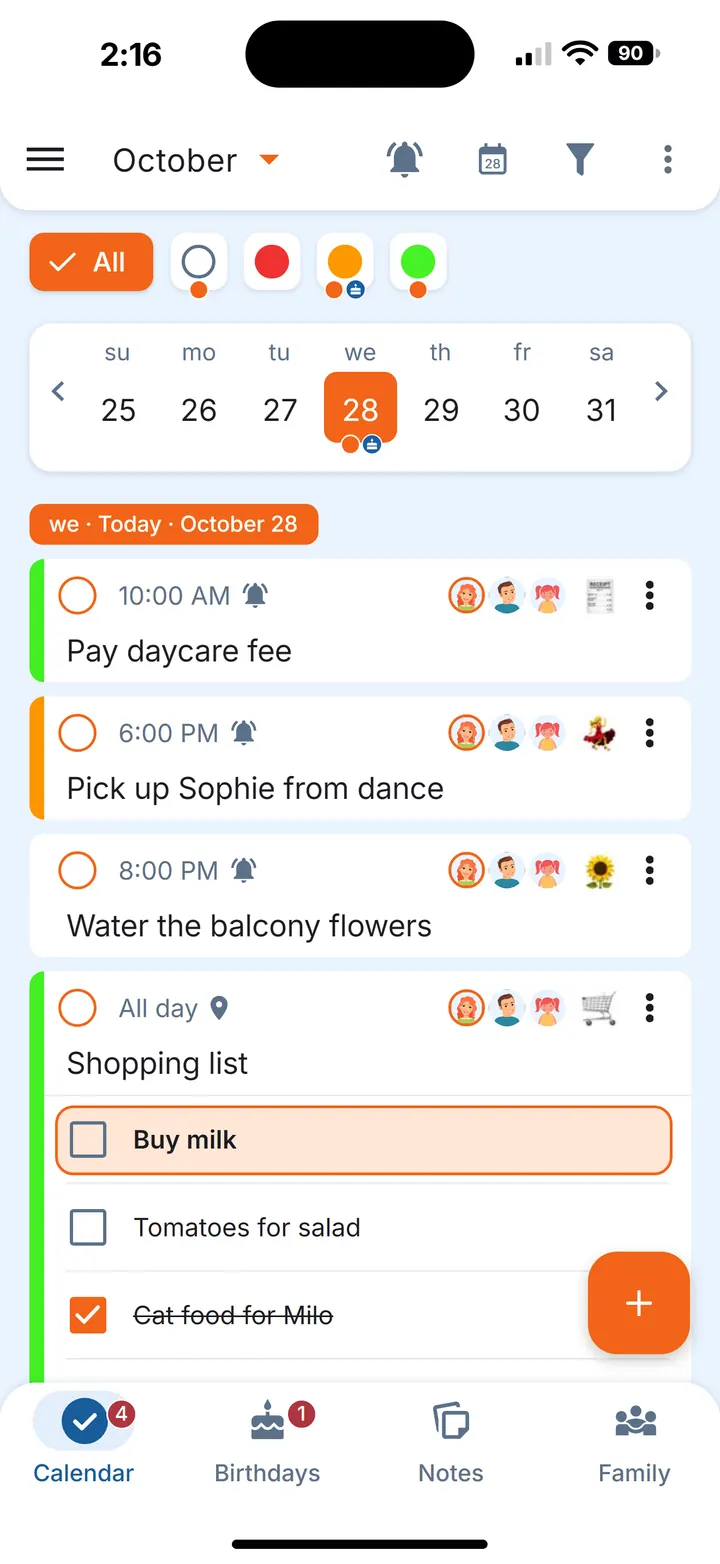
An errand can have several reminders, so you can also keep an earlier heads-up and let the repeating one start at the time itself.
What you can do when it rings
When the reminder arrives, the notification itself gives you a few options:
- Complete — done already? Mark it complete right there, and the reminder stops.
- In 30 min — not now, but soon.
- Other time — pick a delay from 5 minutes up to 4 hours, or stop reminders for today if plans have changed.
Choosing the interval
There's no right interval for everyone; it depends on the job and on your day.
- 5 or 10 minutes for something that has to happen within the next hour.
- 15 or 30 minutes for a job that should be done today but can wait for a natural break.
- 45 or 60 minutes for a gentle prompt that comes back now and then without interrupting you too often.
If none of these fits, set your own step.
Shared errands: everyone picks their own reminder
If an errand is shared with your partner or someone else in your family, its time is the same for everyone, but reminders are personal: each participant can set their own, and it applies only to them; until they do, they get the reminders of whoever created the errand. One of you can have a reminder that repeats until done, the other a single reminder an hour before. Whoever does the job first completes the errand, and everyone sees that it's done.
You'll find this used in practice in our home maintenance schedule and changing address checklist.
Questions
How do I make a reminder repeat until I complete the task?
Choose a reminder that repeats until the task is marked done. In Family Errands, set Repeat on the reminder: it comes back every 5, 10, 15, 30, 45 or 60 minutes, or at a custom step, until you complete the errand.
How do I stop a reminder that keeps repeating?
Complete the errand — from the notification, the errand card, the errand screen or the widget. Once the errand is marked done, the reminder stops.
Does Family Errands work on iPhone?
Yes. Family Errands is on the App Store and Google Play, and one family can use both: a partner on iPhone and a partner on Android share the same errands.